Prezi vs Slidely AI

Visual storytelling or an editable PowerPoint workflow?

My hands-on comparison of Prezi’s visual storytelling and Slidely AI’s editable PowerPoint workflow.

By Apoorve Singhal

I work at Slidely AI. This comparison reflects my evaluation of the workflows shown.

Updated

See the comparison ↓

Prezi

Visual storytelling and presenting

Slidely AI

Business PowerPoint workflows

Illustrative workflow previews

Our take

I would choose Slidely AI for an editable business PowerPoint deck, and Prezi for a live visual story built around its zooming canvas.

Contents

“Just update last month’s deck. Should take ten minutes.”

A lovely theory. An hour later, you’re fixing a chart, hunting for the right logo and wondering why one text box has decided to use Calibri. The file is called Final_v6. Naturally, there are more changes.

That’s the situation I have in mind in this Prezi vs Slidely AI comparison. Both tools can help create a presentation. I’m interested in what happens when the first draft meets the company template, the latest numbers and a colleague with ‘one small change.’

Animated reaction GIF accompanying a supposedly quick deck update

I recommend Slidely AI for ongoing PowerPoint work, especially when the company template and editable file matter. I would look more closely at Prezi for a workshop or visual story built around its zooming canvas.

I’m writing from Slidely AI’s perspective. Below, I’ll explain the examples behind my recommendation, including what worked in Prezi and where I needed another step. ‘AI-powered’ doesn’t tell you who’s fixing the deck at 6 p.m.

Prezi vs Slidely AI at a glance

What mattersPreziPreziSlidely AISlidely AI
Brief and storylinePrompt-led creation with references gives a starting deckReference files, brief clarification and a slide plan to review before design
Design and business exhibitsDesigner choices, themes and a zooming canvasPowerPoint design sources and detailed, editable business exhibits
Company templatePreserve or reinterpret an imported deckUse the team's existing PowerPoint deck as the design source
Revisions and handoffChat edits in Prezi; PPTX export turns frames into static slidesCreate and revise native PowerPoint content that colleagues can keep editing
Recurring workLive workshops and visual storytelling built around zoomingUpdating numbers, layouts and content in recurring business decks
Cost and plan fitFree Basic; paid plans add privacy, AI usage and support optionsFree credits; paid plans vary in usage and PowerPoint add-in features

What I compared and how

I looked at first drafts, design choices, template handling and revisions, using the examples shown below. I also checked the product documentation for file support, PowerPoint export and pricing. The screenshots cover different briefs, so this is a comparison of workflows rather than a controlled test of speed or output quality.

My main question is practical: how much work remains before a colleague can use the presentation and keep editing it?

How each tool gets from a brief to a first draft

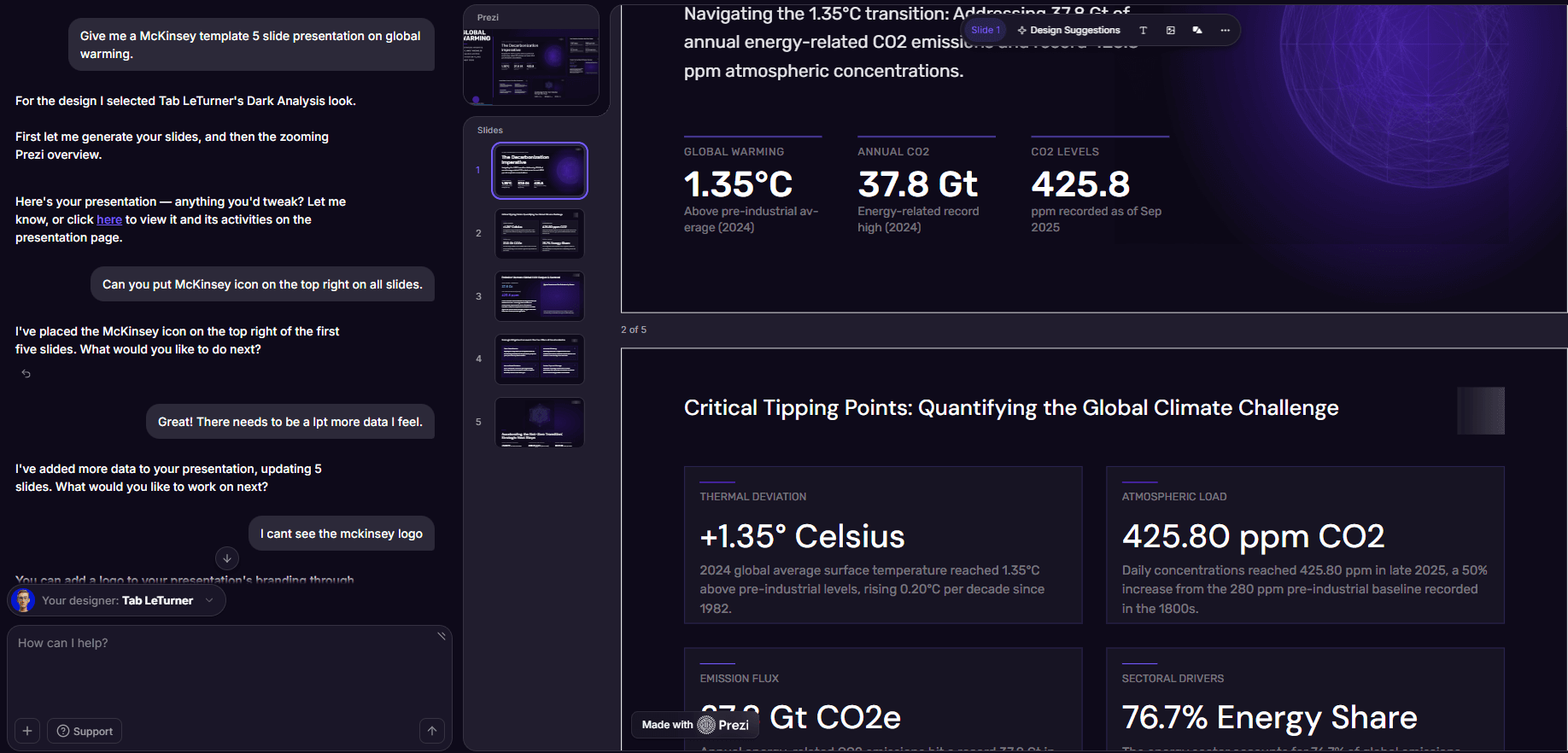
I asked Prezi for a five-slide presentation on global warming in a McKinsey-style template. It selected a dark visual style and produced a deck I could revise through chat. The visible slide groups decarbonization into four themes, each with a short explanation. That gave me a starting structure, but I wanted more supporting data, so I asked for another pass.
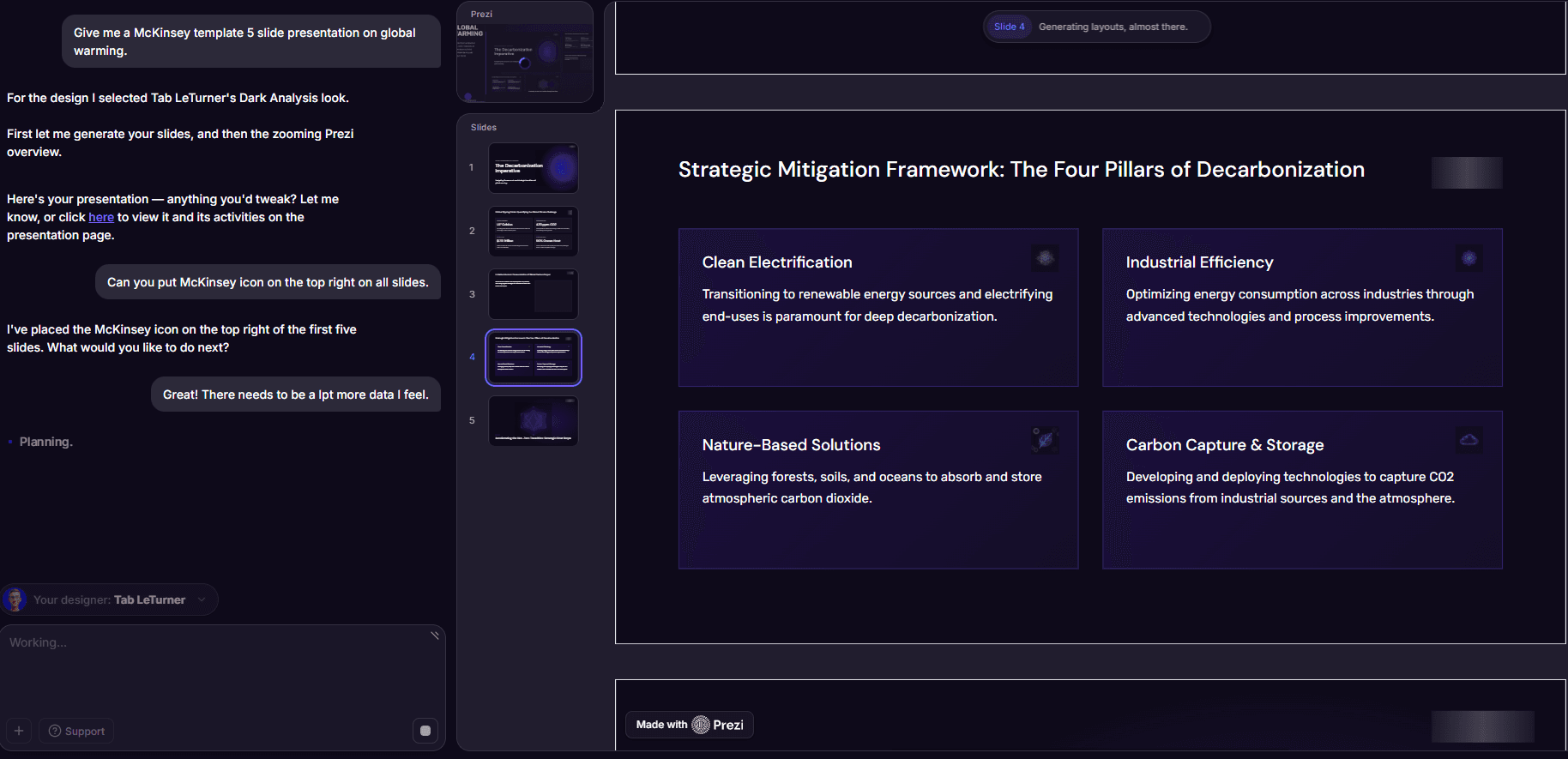
Prezi’s response to my five-slide brief, with the request for more data visible in the chat.

Prezi also offers an upload route. The screen below accepts PowerPoint, PDF and image references, which is useful when you already have material to work from. My short prompt gave it a topic and a style cue; an existing report or deck would give it more substance to draw on. I would also spell out the audience and the decision the deck should support; our guide to writing presentation prompts explains how to make that brief more specific.
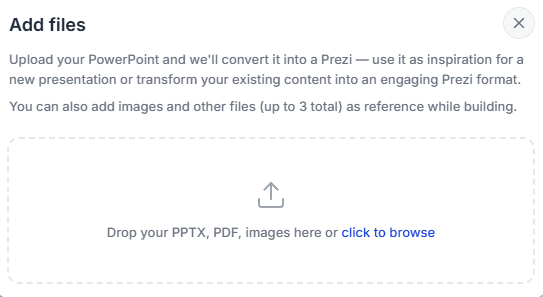
Prezi’s upload screen offers PPTX, PDF and image references.

How Slidely approaches the brief

Slidely puts the proposed storyline in view before the finished slides. If you are creating a presentation with AI, this is a chance to check the story before design. You can bring reference documents, spreadsheet data and a PowerPoint design source into the workflow. The example below pairs each slide headline with the purpose it serves in the presentation.

That planning view is useful because it makes the argument easier to inspect. Does the deck explain the problem before offering a recommendation? Are two slides making the same point? Is a headline saying anything beyond naming the topic? I would rather resolve those questions here than discover them after five slides have been designed.
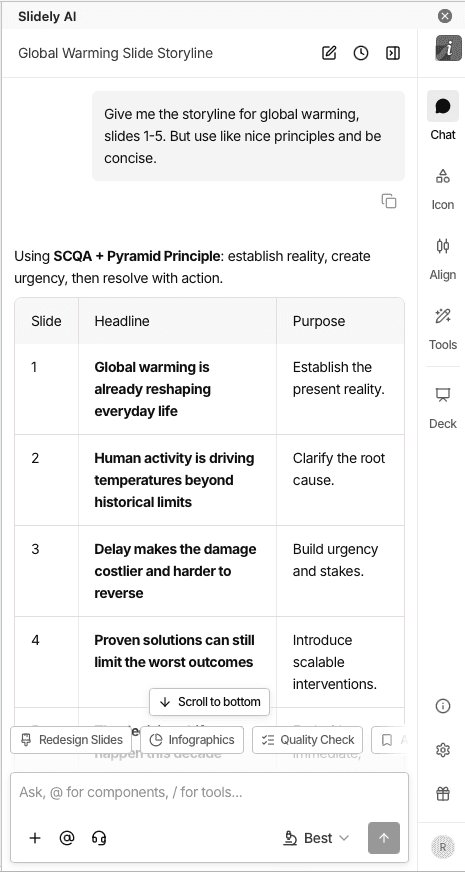
Slidely’s planning view pairs each proposed slide headline with its purpose.

For a business presentation, this is the distinction I care about at the start: getting a plausible structure is helpful, but I also want a chance to challenge the reasoning before committing to the slides.

How useful the generated slides are

I liked having a choice of designers in Prezi. The picker gives you several visual directions and themes, so you can choose a starting look instead of working around one default. That is useful for a new presentation without an approved template. My global-warming example used a dark theme with clear headings and separate content blocks.
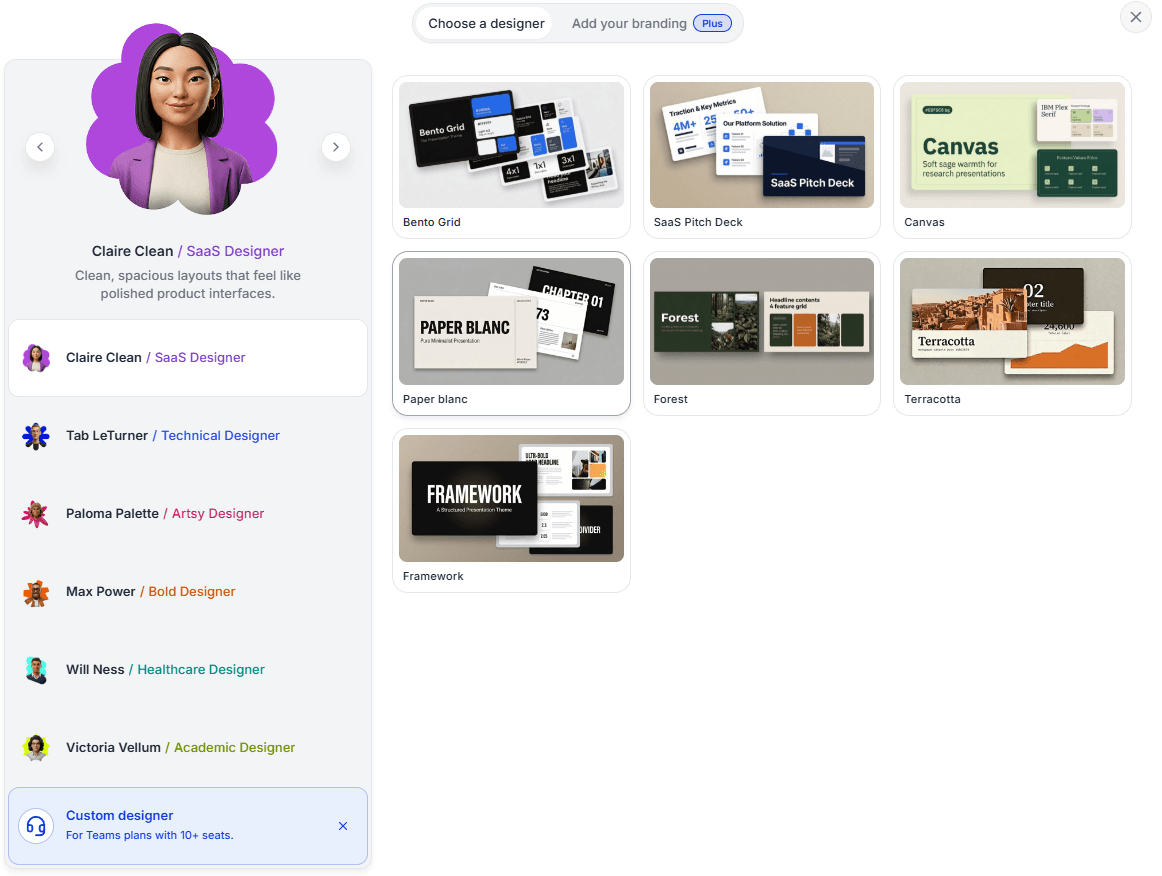
Prezi’s designer picker offers several visual directions and themes.

For a business deck, I also look at whether a slide helps the reader compare information. The Slidely example below uses a sector-risk matrix, with explanations underneath. The matrix brings several sectors and risk categories into one view. That gives the audience something more specific to inspect than a series of general statements.
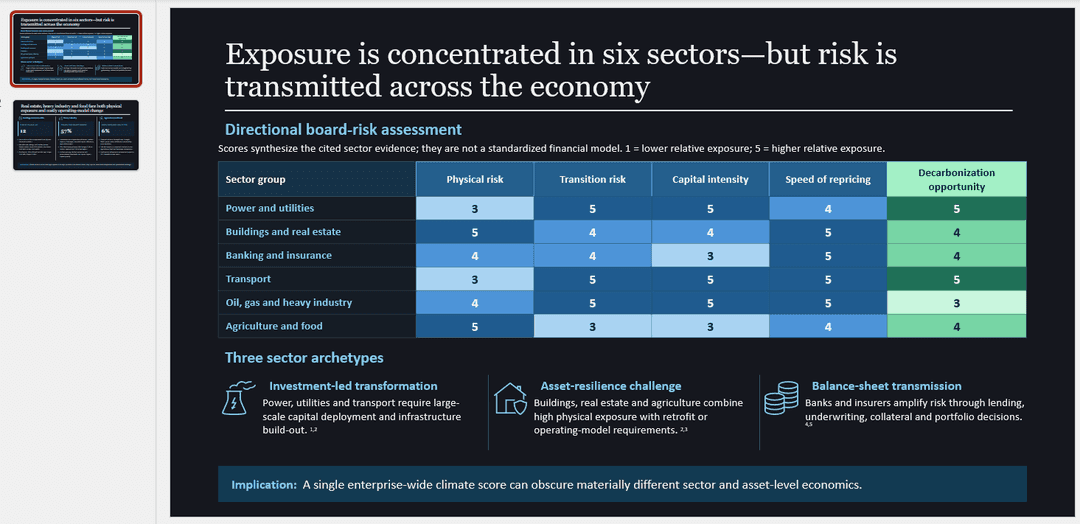
Slidely example with a risk matrix and supporting explanations on one slide.

The trade-off is density. A matrix like this needs legible labels and enough time for the audience to read it; it is not automatically the right choice for a live talk. I would check its visual hierarchy before presenting it. I would use this format for a discussion where the comparison matters, then check the values and supporting evidence before sharing it.

One detail in the Prezi examples also needs context: a chat rejected a CSV attachment. Prezi’s file-support documentation nevertheless lists CSV, XLS and XLSX imports for charts. The limitation was the route shown in that conversation. If your presentation depends on spreadsheet data, check how that data enters the chart workflow rather than assuming every upload box supports it.

Can you use your company PowerPoint template?

A theme becomes less useful when the client says, ‘Please use our template.’ Now the title positions, chart styles and recurring layouts matter. Asking for a McKinsey-style presentation, as I did in the earlier example, is a style request. It does not test whether a tool can reproduce an actual company PowerPoint template.

Prezi gave me three clear import options: preserve the slides, improve the text while keeping the meaning, or use the file as inspiration for new content. I like that distinction. If a deck has already been approved, I want control over whether the tool rewrites it.
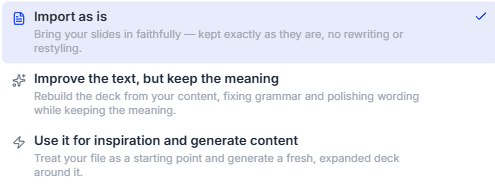
Prezi separates preserving imported slides from rewriting or reinterpreting them.

The import choices tell me how Prezi proposes to treat the content. They don’t show what happens to the original PowerPoint masters and layouts after export. For a strict company template, I would check the exported file against the source before treating that round trip as complete.

How Slidely uses the existing deck

Slidely lets you use the current PowerPoint deck, choose a saved design or upload a PowerPoint as the design source. I prefer that starting point when there is already an approved deck: the reference is the actual file the team uses.
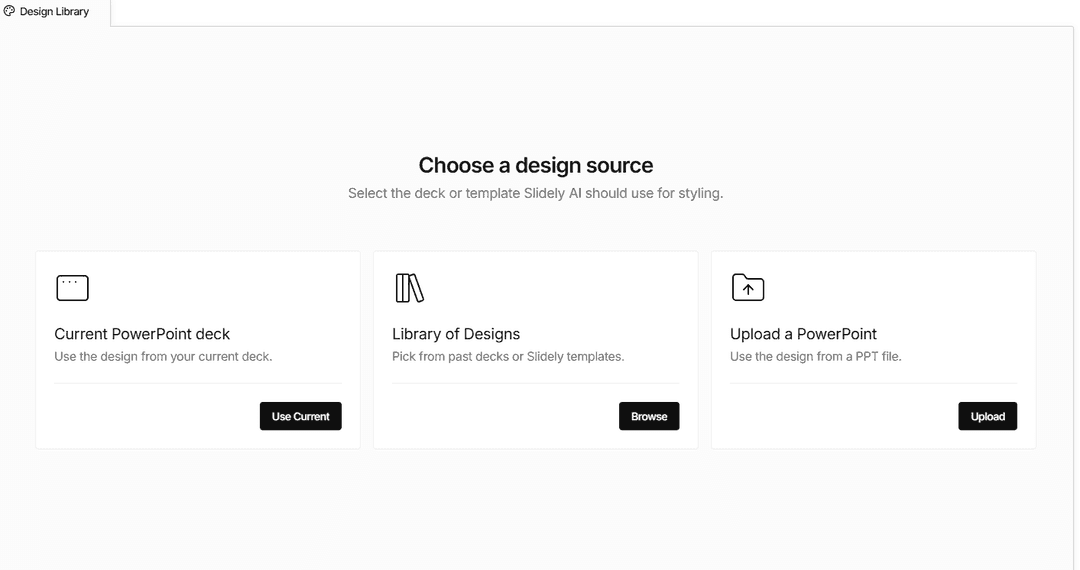
Slidely lets you use the current deck or upload a PowerPoint design source.

For example, a client deck may have a standard layout for recommendations and another for detailed tables. Matching the brand colors is only part of keeping AI-generated presentations on brand. Using the deck as the design source gives the task a more specific reference. I would still review the finished layouts, especially dense exhibits, before sending them to the client.
Make your next deck in PowerPoint

Try Slidely AI with a deck your team already uses

Bring your brief and company template together, then keep refining the slides in PowerPoint.

What happens when the first draft needs changes?

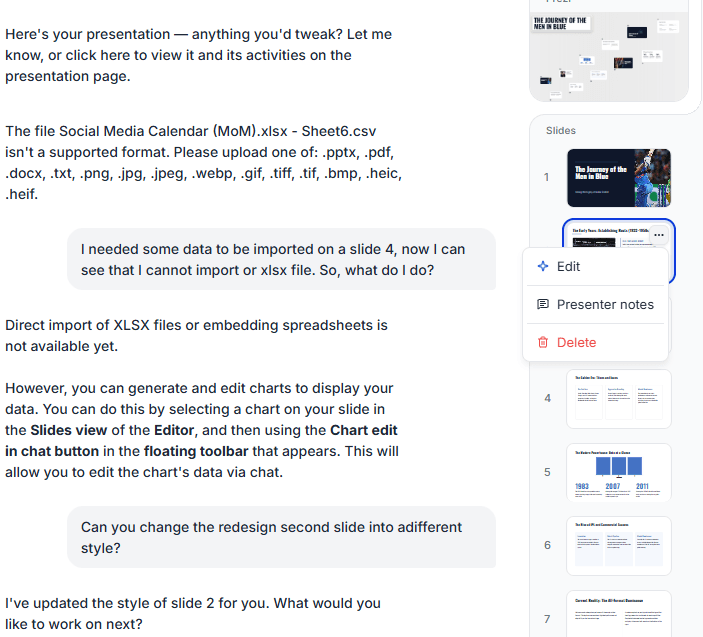
In one Prezi example, I asked for a different style on the second slide. The assistant reported making the change. That is a convenient way to request a local revision, but this capture does not show the before-and-after result. The next example, involving a logo, shows why I pay attention to the output as well as the chat response.

Prezi confirms a requested change to slide two; the capture shows the conversation, not a before-and-after result.

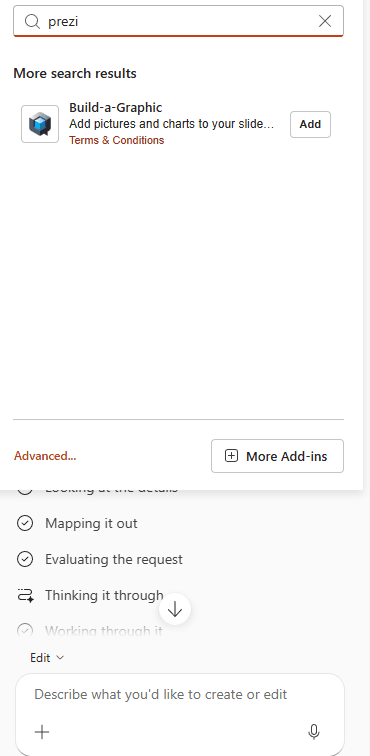
In the PowerPoint add-in search I tried, I did not find an official Prezi result. That single search is not proof that no add-in exists. Prezi does document PPTX export: each frame becomes a static PowerPoint slide. That provides a way to share the presentation in PowerPoint, but I would inspect the exported objects before promising colleagues fully editable charts, tables and shapes.

Prezi search results in PowerPoint’s add-in marketplace; no official add-in appears in this search.

Revisions inside PowerPoint

Slidely’s PowerPoint add-in keeps creation and editing close to the file my colleagues expect to receive. For a recurring deck, that is the appeal: I can work on the presentation in the environment where the next round of changes will happen. The useful measure is whether the specific text, layout or chart edit survives review, not whether the assistant says it is done. For the wider cleanup process, I would use our guide to editing PowerPoint with AI as a starting point.

Animated reaction GIF accompanying a follow-up slide revision

The logo request made that distinction concrete. I asked Prezi to put a McKinsey icon in the top-right corner of every slide. It reported adding it to the first five slides, but I couldn’t see the logo and had to ask again. A supposedly finished branding change had become another follow-up. ‘Done’ was doing quite a lot of work here.

Prezi reported adding the logo, but I could not see it and asked again.

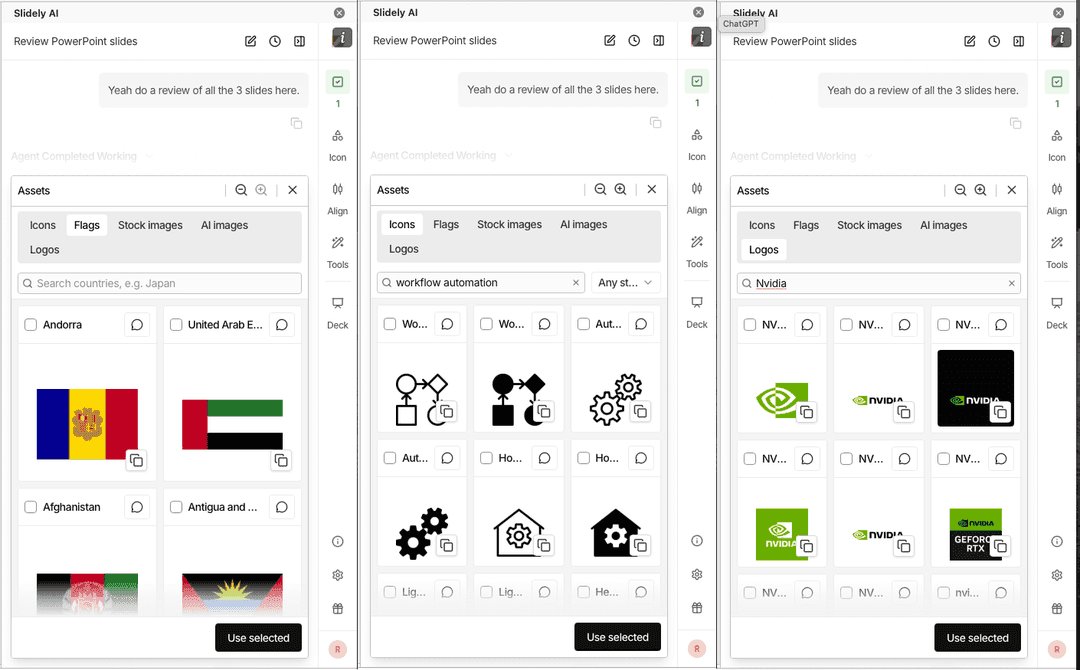
Slidely’s asset panel provides a place to browse logos, icons and flags while working in PowerPoint. That is relevant to the same sort of cleanup task. The screenshot shows the available assets; it does not show the McKinsey logo request completed. I would use the final slide, with the correct logo and placement, to judge whether that task was actually finished.

Slidely’s asset panel provides flags, icons and logos while working in PowerPoint.

Which tool fits recurring business presentations?

For a monthly business review, I would start with the deck the team already uses. The work is usually specific: update the figures, explain the change and keep the format familiar. Our guide to turning spreadsheet metrics into a presentation story covers the narrative part of that work. Slidely’s Excel linking, AI slide editing, slide checks and formatting tools are relevant here, though availability varies by plan. These are maintenance tasks that continue long after the first draft.

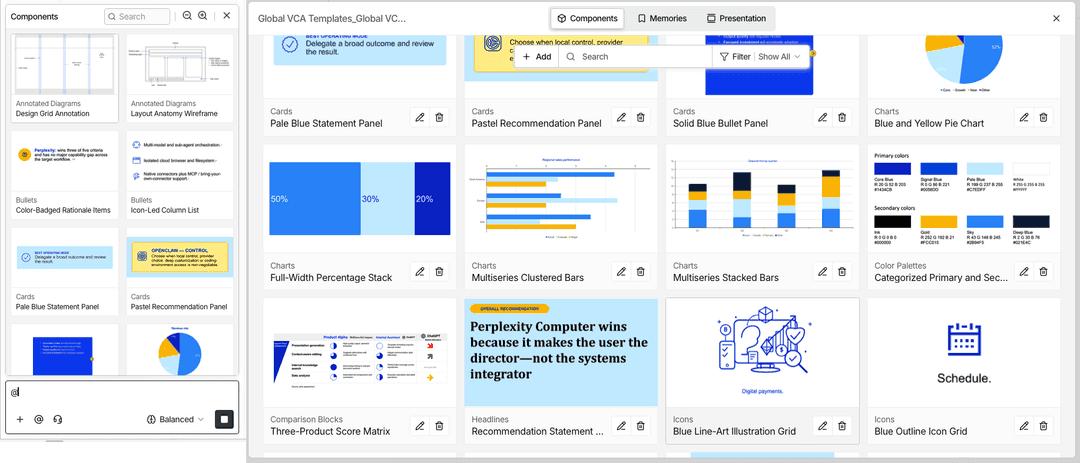
Reusable components matter for the same reason. The library below contains layouts and visual elements that can be used again. A familiar recommendation page or timeline gives a team a starting point for the next deck. It also reduces the number of design decisions a reviewer has to revisit.

Slidely’s component library shows reusable visual patterns from presentation work.

I would consider Prezi for a different recurring task: leading workshops or explaining a subject through an overview that zooms into individual topics. In that setting, the movement through the material is part of the presentation’s value. A conventional slide sequence may not serve the session as well.

That is why I would decide using a real assignment. For a reporting deck, inspect how easily the numbers and layouts can be updated. For a workshop, rehearse how the audience will move through the story. Each reveals more than generating an impressive opening slide.

What Prezi and Slidely AI cost

Both products have a free starting point. The more useful question is which paid plan covers your actual work. Prezi’s pricing lists limited AI credits for Basic and Standard; its Plus tier advertises unlimited AI generation. Slidely’s individual paid plans offer different usage limits and PowerPoint features.

  • Prezi: Basic is free with public content and limited AI credits. Annual-billing prices listed in the draft are Standard at US$7 per month, Plus at US$19 and Premium at US$29. Standard adds privacy controls, Plus advertises unlimited AI generation, and Premium adds priority technical support.
  • Slidely AI: Free includes limited signup credits and 15-day add-in access. Annual-billing prices listed in the draft are Pro at US$16 per month and Max at US$80, with different usage limits and features.

Listed USD prices checked on 29 September 2026. Regional offers, taxes and billing terms may differ.

For regular PowerPoint creation and editing, Slidely Pro is the first paid plan I would evaluate. If a particular utility is essential, check its row in the feature matrix before subscribing. General add-in access does not mean every advanced feature is included.

For Prezi, I would check privacy and AI limits first. Basic content is public, while Standard adds privacy controls; Plus is the step up for unlimited AI generation. Slidely also distinguishes free and paid plans on training use, so those terms belong in the comparison when company material is involved.

I would compare the subscription price with the work left on a real deck. If the tool leaves a colleague rebuilding the chart or fixing the template, that effort belongs in the decision too.

For a team purchase, I would separately check seat administration, access controls and support. The individual prices above don’t establish what an enterprise rollout will cost.

When to choose Prezi and when to choose Slidely AI

I would choose Prezi for a presentation designed around a live visual story, particularly when the deck will be built and presented in Prezi. I liked the designer choices and the clear import options. In the examples here, I still needed to ask for more data and follow up on a logo change the assistant had already marked as complete.

For business presentations that need an existing company template, detailed exhibits and continued editing in PowerPoint, I recommend Slidely AI. Its storyline planning, PowerPoint design sources and add-in address the work I care about after the initial generation.

Start with a deck your team genuinely needs to update. I would use these red flags when choosing an AI PowerPoint maker to frame the trial. Make the usual changes, review the result and hand it to the person who edits it next. If that handoff is straightforward, you have learned something more useful than whether an AI presentation maker can generate five attractive slides.

Frequently asked questions

For a deck my team needs to keep editing in PowerPoint, I would choose Slidely AI. If the main job is a live visual story with a zooming canvas, I would consider Prezi instead. I would test both on the actual presentation before buying.

Make your next deck in PowerPoint

See how Slidely handles your team’s deck

Bring an existing PowerPoint and try the changes your team makes every month.

Explore more comparisons

Still weighing your options? See how other presentation tools compare with Slidely AI.